Remote desktop
Reach any computer by ID.
No port forwarding.
MangoScreen shares this computer's screen, or connects to another, with a Device ID and password. It goes direct when the network allows and through your own relay when it doesn't — and the relay can't read the session either way.
How it connects
Both computers dial out, so neither needs an open port. The relay introduces them; after that the session takes the shortest path it can find.
- Direct first — A peer-to-peer path (QUIC over ICE) is tried on every connection. On the same network, or across most home and office NATs, the relay steps out of the way entirely.
- Relay when it must — If no direct path forms, the session falls back to the relay over HTTPS port 443, which gets through most firewalls.
- Encrypted end to end — Screen, keystrokes, clipboard and files are encrypted between the two computers. A relayed session passes through the relay as ciphertext.
- Your relay — The relay is self-hosted: one Docker bundle and an installer on a small Linux server. The same relay serves MangoSSH's persistent sessions and PAM Broker.
What you can do in a session
- See and control — Screen, mouse and keyboard, with a pop-out window and recording.
- Clipboard — Text copied on one side pastes on the other. Off with one switch.
- Files and folders — Browse the remote computer's folders, send and fetch files and whole folders, or drag them onto the session.
- Chat — Talk to the person at the other computer without a second app.
- Several at once — Connect to more than one computer, each in its own tab.
- Invites — Instead of reading out an ID and password, the person who needs help types your ID and clicks Invite. You get a prompt and connect with one click.
- Saved devices — Recent and saved computers with names, one click to reconnect.
- Unattended access — On Windows, one click installs MangoScreen as a service, so the computer stays reachable before anyone signs in.
The whole app, four screens
There is no account, no console and no second thing to learn. This is all of it, from the shipping Windows build.
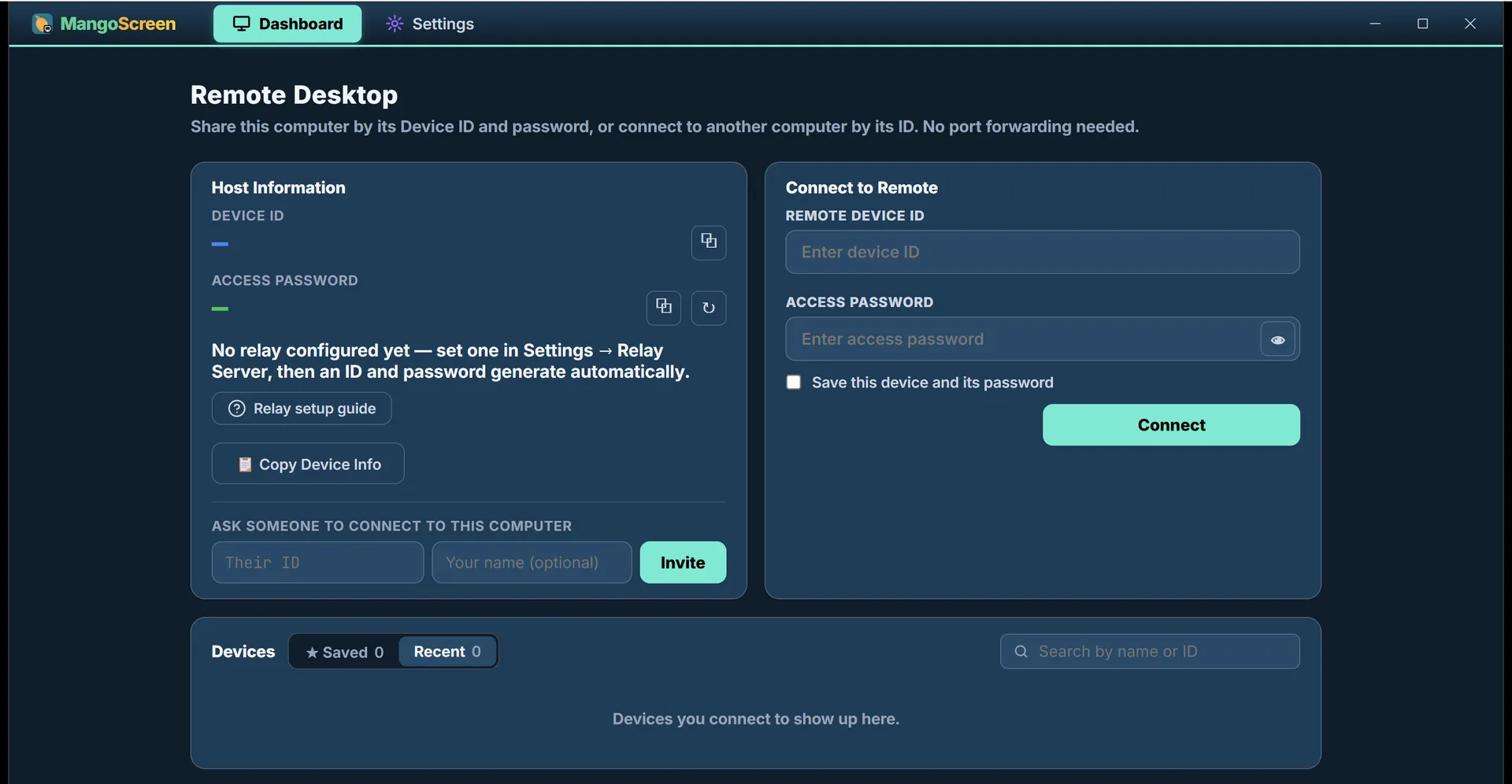
1 of 4
Your ID on the left, theirs on the right
Once a relay is set, this computer gets a nine-digit Device ID and a six-digit access password, and sharing it is reading those two numbers out. Connecting the other way is typing someone else’s into the right-hand card. Or skip the reading out entirely: put their ID into Invite and they get a prompt to connect to you, which is the easier direction when you are the one who needs help.
Not built yet: audio, choosing which monitor to share, and printing to the viewer’s printer. Sharing a Linux desktop works through three different capture engines and is not yet verified on every desktop environment; connecting from Linux is fine.
Weighing it against RustDesk? The two set side by side, with the rows where RustDesk wins left in.
Download
No account, nothing phoning home, and on Windows nothing to install: run it on each computer you share or connect from, and point it at your relay.
MangoScreen
One app for both sides: it shares this computer and connects to others. It needs a relay you run — the same one MangoSSH uses.
- WindowsWindows 10 and 11 · one file, nothing to install — just run itDownload
- macOS · Apple siliconShares and connects. Needs Screen Recording and Accessibility permissionComing soon
- macOS · IntelShares and connectsComing soon
- Linux · .debConnects; sharing a Linux screen is still being verifiedDownload
- Linux · AppImageAny distributionDownload
Verify a download against SHA256SUMS for 1.0.104.
Windows and macOS will warn you the first time. These builds are not code-signed yet, so both show their unknown-developer dialog on first launch. Code signing is in progress. Until it lands, the SHA-256 checksums published with every release are how you confirm the file you have is the file we built.
Windows · SmartScreen
- If the browser flags the download itself, choose Keep.
- Run the installer. A blue “Windows protected your PC” dialog appears.
- Click More info, then Run anyway.
macOS · Gatekeeper
- Open the .dmg and drag the app into Applications.
- Launch it once. macOS refuses, saying the developer cannot be verified.
- Open System Settings → Privacy & Security and scroll to Security. The blocked app is named there, with an Open Anyway button.
- Click it, then confirm with Open. On macOS 14 and earlier you can instead Control-click the app and choose Open.